

(2024) PASS MS-500 Exam Free Practice Test with 100% Accurate Answers
MS-500 dumps Free Test Engine Verified By It Certified Experts
NEW QUESTION # 148
Your network contains an on-premises Active Directory domain. The domain contains the servers shown in the following table.
You plan to implement Microsoft Defender for Identity for the domain. You install a Microsoft Defender for Identity standalone sensor on Server 1. You need to monitor the domain by using Microsoft Defender for Identity. What should you do?
- A. Configure port mirroring for Server1.
- B. Install the Microsoft Monitoring Agent on DC1.
- C. Configure port mirroring for DCI.
- D. Install the Microsoft Monitoring Agent on Server 1.
Answer: C
NEW QUESTION # 149
You have a Microsoft 365 subscription.
You create and run a content search from the Security & Compliance admin center.
You need to download the results of the content search.
What should you obtain first?
- A. an export key
- B. a password
- C. a certificate
- D. a pin
Answer: A
Explanation:
Explanation
References:
https://docs.microsoft.com/en-us/office365/securitycompliance/export-search-results
NEW QUESTION # 150
You have an on-premises Hyper-V infrastructure that contains the following:
An Active Directory domain
A domain controller named Server1
A member server named Server2
A security policy specifies that Server1 cannot connect to the Internet. Server2 can connect to the Internet.
You need to implement Azure Advanced Threat Protection (ATP) to monitor the security of the domain.
What should you configure on each server? To answer, drag the appropriate components to the correct servers. Each component may only be used once, more than once, or not at all. You may need to drag the split bar between panes or scroll to view content.
NOTE: Each correct selection is worth one point.
Answer:
Explanation:
NEW QUESTION # 151
You have a Microsoft 365 subscription that contains a user named User.
You enroll devices in Microsoft Intune as shown in the following table.
Each device has two line of business apps named App1 and App2 installed.
You create application control policies targeted to all the app types in Microsoft Endpoint Manager as shown in the following table.
For each of the following statements, Select Yes if the statement is true. Otherwise, select No.
NOTE: Each correct selection is worth one point.
Answer:
Explanation:
Explanation
Graphical user interface, text, application Description automatically generated
Box 1: Yes
Device1 is an Android device in Group3 (and Group1). Policy1 applies to Android devices in Group3.
Therefore, Policy1 does apply to Device1.
Box 2: Yes
Policy3 protects App1 for Android devices in Group1. Device1 is in Group1 (and Group3). Therefore, App1 is protected on Device1.
Box 3: No
Device2 is an iOS device in Group1 and Group2. Policy2 applies to iOS devices in Group2. However, Policy2 only protects App2. It does not protect App1.
Policy3 applies to Group1 and protects App1. However, Policy3 only applies to Android devices in Group1. It does not apply to iOS devices. Therefore, Policy3 does not apply to Device2 so App1 is not protected on Device2.
NEW QUESTION # 152
You have a Microsoft 365 subscription that contains the users shown in the following table.
You implement Azure Active Directory (Azure AD) Privileged Identity Management (PIM).
From PIM, you review the Application Administrator role and discover the users shown in the following table.
The Application Administrator role is configured to use the following settings in PIM:
* Maximum activation duration: 1 hour
* Notifications: Disable
* Incident/Request ticket: Disable
* Multi-Factor Authentication: Disable
* Require approval: Enable
* Selected approver: No results
For each of the following statements, select Yes if the statement is true. Otherwise, select No.
NOTE: Each correct selection is worth one point.
Answer:
Explanation:
Explanation
NEW QUESTION # 153
You have a Microsoft 365 subscription that uses an Azure Active Directory (Azure AD) tenant named contoso.com. All the devices in the tenant are managed by using Microsoft Intune.
You purchase a cloud app named App1 that supports session controls.
You need to ensure that access to App can be reviewed in real time.
Which three actions should you perform in sequence? To answer, move the appropriate actions from the list of actions to the answer area and arrange them in the correct order.
Answer:
Explanation:
Explanation
References:
https://docs.microsoft.com/en-us/cloud-app-security/access-policy-aad
NEW QUESTION # 154
Please wait while the virtual machine loads. Once loaded, you may proceed to the lab section. This may take a few minutes, and the wait time will not be deducted from your overall test time.
When the Next button is available, click it to access the lab section. In this section, you will perform a set of tasks in a live environment. While most functionality will be available to you as it would be in a live environment, some functionality (e.g., copy and paste, ability to navigate to external websites) will not be possible by design.
Scoring is based on the outcome of performing the tasks stated in the lab. In other words, it doesn't matter how you accomplish the task, if you successfully perform it, you will earn credit for that task.
Labs are not timed separately, and this exam may more than one lab that you must complete. You can use as much time as you would like to complete each lab. But, you should manage your time appropriately to ensure that you are able to complete the lab(s) and all other sections of the exam in the time provided.
Please note that once you submit your work by clicking the Next button within a lab, you will NOT be able to return to the lab.
Username and password
Use the following login credentials as needed:
To enter your username, place your cursor in the Sign in box and click on the username below.
To enter your password, place your cursor in the Enter password box and click on the password below.
Microsoft 365 Username:
admin@[email protected]
Microsoft 365 Password: #HSP.ug?$p6un
If the Microsoft 365 portal does not load successfully in the browser, press CTRL-K to reload the portal in a new browser tab.
The following information is for technical support only:
Lab instance: 11122308


You plan to create a script to automate user mailbox searches. The script will search the mailbox of a user named Allan Deyoung for messages that contain the word injunction.
You need to create the search that will be included in the script.
To complete this task, sign in to the Microsoft 365 admin center.
Answer:
Explanation:
Step 1: Create a CSV file that contains information about the searches you want to run The comma separated value (CSV) file that you create in this step contains a row for each user that want to search. You can search the user's Exchange Online mailbox (which includes the archive mailbox, if it's enabled) and their OneDrive for Business site. Or you can search just the mailbox or the OneDrive for Business site. You can also search any site in your SharePoint Online organization. The script that you run in Step 3 will create a separate search for each row in the CSV file.
1. Copy and paste the following text into a .txt file using NotePad. Save this file to a folder on your local computer. You'll save the other scripts to this folder as well.
ExchangeLocation,SharePointLocation,ContentMatchQuery,StartDate,EndDate [email protected],https://contoso-my.sharepoint.com/personal/sarad_contoso_onmicrosoft_com,(lawsuit OR legal),1/1/2000,12/31/2005 [email protected],https://contoso-my.sharepoint.com/personal/sarad_contoso_onmicrosoft_com,(lawsuit OR legal),1/1/2006,12/31/2010 [email protected],https://contoso-my.sharepoint.com/personal/sarad_contoso_onmicrosoft_com,(lawsuit OR legal),1/1/2011,3/21/2016
,https://contoso.sharepoint.com/sites/contoso,,,3/21/2016
,https://contoso-my.sharepoint.com/personal/davidl_contoso_onmicrosoft_com,,1/1/2015,
,https://contoso-my.sharepoint.com/personal/janets_contoso_onmicrosoft_com,,1/1/2015, The first row, or header row, of the file lists the parameters that will be used by New-ComplianceSearch cmdlet to create a new Content Searches. Each parameter name is separated by a comm a. Make sure there aren't any spaces in the header row. Each row under the header row represents the parameter values for each search. Be sure to replace the placeholder data in the CSV file with your actual data.
2. Open the .txt file in Excel, and then use the information in the following table to edit the file with information for each search.
3. Save the Excel file as a CSV file to a folder on your local computer. The script that you create in Step 3 will use the information in this CSV file to create the searches.
Reference:
https://docs.microsoft.com/en-us/microsoft-365/compliance/create-report-on-and-delete-multiple-content-searches?view=o365-worldwide Keyword queries and search conditions for Content Search
https://docs.microsoft.com/en-us/microsoft-365/compliance/keyword-queries-and-search-conditions?view=o365-worldwide
NEW QUESTION # 155
Please wait while the virtual machine loads. Once loaded, you may proceed to the lab section. This may take a few minutes, and the wait time will not be deducted from your overall test time.
When the Next button is available, click it to access the lab section. In this section, you will perform a set of tasks in a live environment. While most functionality will be available to you as it would be in a live environment, some functionality (e.g., copy and paste, ability to navigate to external websites) will not be possible by design.
Scoring is based on the outcome of performing the tasks stated in the lab. In other words, it doesn't matter how you accomplish the task, if you successfully perform it, you will earn credit for that task.
Labs are not timed separately, and this exam may more than one lab that you must complete. You can use as much time as you would like to complete each lab. But, you should manage your time appropriately to ensure that you are able to complete the lab(s) and all other sections of the exam in the time provided.
Please note that once you submit your work by clicking the Next button within a lab, you will NOT be able to return to the lab.
Username and password
Use the following login credentials as needed:
To enter your username, place your cursor in the Sign in box and click on the username below.
To enter your password, place your cursor in the Enter password box and click on the password below.
Microsoft 365 Username:
admin@[email protected]
Microsoft 365 Password: #HSP.ug?$p6un
If the Microsoft 365 portal does not load successfully in the browser, press CTRL-K to reload the portal in a new browser tab.
The following information is for technical support only:
Lab instance: 11122308


You need to ensure that all links to malware.contoso.com within documents stored in Microsoft Office 365 are blocked when the documents are accessed from Office 365 ProPlus applications.
To complete this task, sign in to the Microsoft 365 admin center.
Answer:
Explanation:
See explanation below.
Explanation
1. After signing in to the Microsoft 365 admin center, navigate to Threat management, choose Policy > Safe Links.
2. In the Policies that apply to the entire organization section, select Default, and then choose Edit (the Edit button resembles a pencil).
3. In the Block the following URLs section, add the malware.contoso.com link.
4. In the Settings that apply to content except email section, select all the options.
5. Choose Save.
Reference:
https://docs.microsoft.com/en-us/microsoft-365/security/office-365-security/set-up-atp-safe-links-policies?view=
NEW QUESTION # 156
You have a Microsoft 365 E5 subscription that is linked to an Azure Active Directory (Azure AD) tenant named contoso.com. The tenant contains three groups named Group!, Group2. and Group3 and the users shown in the following table.
You create a new access package as shown in the following exhibit.
You have a Microsoft 365 E5 subscription that uses Microsoft Endpoint Manager. The Compliance policy settings are configured as shown in the following exhibit.
These settings configure the way the compliance service treats devices. Each device evaluates these as a "Built-in Device Compliance Policy", which is reflected in device monitoring.


Answer:
Explanation:
NEW QUESTION # 157
You need to recommend an email malware solution that meets the security requirements.
What should you include in the recommendation? To answer, select the appropriate options in the answer area.
NOTE: Each correct selection is worth one point.
Answer:
Explanation:
Topic 3, Contoso, Ltd
Existing Environment
Infrastructure
The network contains an Active Directory domain named contoso.com that is synced to a Microsoft Azure Active Directory (Azure AD) tenant. Password writeback is enabled.
The domain contains servers that run Windows Server 2016. The domain contains laptops and desktop computers that run Windows 10 Enterprise.
Each client computer has a single volume.
Each office connects to the Internet by using a NAT device. The offices have the IP addresses shown in the following table.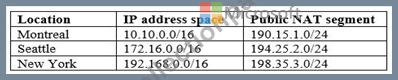
Named locations are defined in Azure AD as shown in the following table.
From the Multi-Factor Authentication page, an address space of 198.35.3.0/24 is defined in the trusted IPs list.
Azure Multi-Factor Authentication (MFA) is enabled for the users in the finance department.
The tenant contains the users shown in the following table.
The tenant contains the groups shown in the following table.
Customer Lockbox is enabled in Microsoft 365.
Microsoft Intune Configuration
The devices enrolled in Intune are configured as shown in the following table.
The device compliance policies in Intune are configured as shown in the following table.
The device compliance policies have the assignments shown in the following table.
The Mark devices with no compliance policy assigned as setting is set to Compliant.
Requirements
Technical Requirements
Contoso identifies the following technical requirements:
Use the principle of least privilege
Enable User1 to assign the Reports reader role to users
Ensure that User6 approves Customer Lockbox requests as quickly as possible Ensure that User9 can implement Azure AD Privileged Identity Management
NEW QUESTION # 158
注:この質問は同じシナリオを提示する一連の質問の一部です。の各質問
シリーズは述べられた目的を満たすかもしれないユニークな解決策を含みます。いくつかの質問セット
他の人が正しい解決策を持っていないかもしれない間、複数の正しい解決策を持っています。
このセクションで質問に答えた後は、それに戻ることはできません。その結果、
質問はレビュー画面に表示されません。
Microsoft 365テナントがあります。 Microsoft AzureでCompanyConfidentialというラベルを作成します。
情報保護CompanyConfidentialをグローバルポリシーに追加します。
ユーザーはCompanyConfidentialを使用して電子メールメッセージを保護し、ラベルを複数の外部ユーザーに送信します。
受信者外部の受信者は、電子メールメッセージを開くことができないと報告しています。
外部の受信者が自分に送信された保護された電子メールメッセージを開くことができることを確認する必要があります。
解決方法:ラベルの暗号化設定を変更します。
これは目標を達成していますか?
- A. いいえ
- B. はい
Answer: A
NEW QUESTION # 159
Please wait while the virtual machine loads. Once loaded, you may proceed to the lab section. This may take a few minutes, and the wait time will not be deducted from your overall test time.
When the Next button is available, click it to access the lab section. In this section, you will perform a set of tasks in a live environment. While most functionality will be available to you as it would be in a live environment, some functionality (e.g., copy and paste, ability to navigate to external websites) will not be possible by design.
Scoring is based on the outcome of performing the tasks stated in the lab. In other words, it doesn't matter how you accomplish the task, if you successfully perform it, you will earn credit for that task.
Labs are not timed separately, and this exam may more than one lab that you must complete. You can use as much time as you would like to complete each lab. But, you should manage your time appropriately to ensure that you are able to complete the lab(s) and all other sections of the exam in the time provided.
Please note that once you submit your work by clicking the Next button within a lab, you will NOT be able to return to the lab.
Username and password
Use the following login credentials as needed:
To enter your username, place your cursor in the Sign in box and click on the username below.
To enter your password, place your cursor in the Enter password box and click on the password below.
Microsoft 365 Username:
admin@[email protected]
Microsoft 365 Password: #HSP.ug?$p6un
If the Microsoft 365 portal does not load successfully in the browser, press CTRL-K to reload the portal in a new browser tab.
The following information is for technical support only:
Lab instance: 11122308


You need to ensure that all the email messages in the mailbox of a user named Allan Deyoung are retained for a period of 90 days, even if the messages are deleted.
To complete this task, sign in to the Microsoft 365 admin center.
Answer:
Explanation:
See explanation below.
Explanation
1. Navigate to the Exchange Admin Center
2. Navigate to Compliance management > Retention tags, and then click Add +
3. Select the Applied automatically to entire mailbox (default) option.
4. The New retention tag page title and options will vary depending on the type of tag you selected. Complete the following fields:
Name: Enter a name for the retention tag.
Retention action: Select Delete and Allow Recovery option.
Retention period: Select When the item reaches the following age (in days) option.
Comment: User this optional field to enter any administrative notes or comments. The field isn't displayed to users.
5. Navigate to Compliance management > Retention policies, and then click Add +
6. In New Retention Policy, complete the following fields:
Name: Enter a name for the retention policy.
Retention tags: Click Add + to select the tags you want to add to this retention policy.
After you create a retention policy, you must apply it.
1. Navigate to Recipients > Mailboxes.
2. In the list view, select the mailbox to which you want to apply the retention policy, and then click Edit.
3. In User Mailbox, click Mailbox features.
4. In the Retention policy list, select the policy you want to apply to the mailbox, and then click Save.
Reference:
https://docs.microsoft.com/en-us/exchange/security-and-compliance/messaging-records-management/create-a-re
https://docs.microsoft.com/en-us/exchange/security-and-compliance/messaging-records-management/apply-reten
NEW QUESTION # 160
You have a Microsoft 365 E5 subscription.
From Microsoft Azure Active Directory (Azure AD), you create a security group named Group1. You add 10 users to Group1.
You need to apply app enforced restrictions to the members of Group1 when they connect to Microsoft Exchange Online from non-compliant devices, regardless of their location.
What should you do? To answer, select the appropriate options in the answer area.
NOTE: Each correct selection is worth one point.
Answer:
Explanation:
Explanation
NEW QUESTION # 161
You have a Microsoft SharePoint Online site named Site1 that contains the files shown in the following table.
You have a data loss prevention (DLP) policy named DLP1 that has the advanced DLP rules shown in the following table.
You apply DLP1 toSite1.
For each of the following statements, select Yes if the statement is true. Otherwise, select No.
NOTE: Each correct selection is worth one point.
Answer:
Explanation:
Explanation
NEW QUESTION # 162
You have a Microsoft 365 subscription that include three users named User1, User2, and User3.
A file named File1.docx is stored in Microsoft OneDrive. An automated process updates File1.docx every minute.
You create an alert policy named Policy1 as shown in the following exhibit.
Use the drop-down menus to select the answer choice that completes each statement based on the information presented in the graphic.
NOTE: Each correct selection is worth one point.
Answer:
Explanation:
Explanation
References:
https://docs.microsoft.com/en-us/office365/securitycompliance/alert-policies
NEW QUESTION # 163
Your company has a Microsoft 365 subscription that contains the users shown in the following table.
The company implements Windows Defender Advanced Threat Protection (Windows Defender ATP).
Windows Defender ATP includes the roles shown in the following table:
Windows Defender ATP contains the machine groups shown in the following table:
For each of the following statements, select Yes if the statement is true. Otherwise, select No.
NOTE: Each correct selection is worth one point.
Answer:
Explanation:
Explanation
NEW QUESTION # 164
You have a Microsoft 365 subscription.
You create a retention label named Label1 as shown in the following exhibit.
You publish Label1 to SharePoint sites.
Use the drop-down menus to select the answer choice that completes each statement based on the information presented in the graphic.
NOTE: Each correct selection is worth one point.
Answer:
Explanation:
Explanation
References:
https://docs.microsoft.com/en-us/office365/securitycompliance/labels
NEW QUESTION # 165
Please wait while the virtual machine loads. Once loaded, you may proceed to the lab section. This may take a few minutes, and the wait time will not be deducted from your overall test time.
When the Next button is available, click it to access the lab section. In this section, you will perform a set of tasks in a live environment. While most functionality will be available to you as it would be in a live environment, some functionality (e.g., copy and paste, ability to navigate to external websites) will not be possible by design.
Scoring is based on the outcome of performing the tasks stated in the lab. In other words, it doesn't matter how you accomplish the task, if you successfully perform it, you will earn credit for that task.
Labs are not timed separately, and this exam may more than one lab that you must complete. You can use as much time as you would like to complete each lab. But, you should manage your time appropriately to ensure that you are able to complete the lab(s) and all other sections of the exam in the time provided.
Please note that once you submit your work by clicking the Next button within a lab, you will NOT be able to return to the lab.
Username and password
Use the following login credentials as needed:
To enter your username, place your cursor in the Sign in box and click on the username below.
To enter your password, place your cursor in the Enter password box and click on the password below.
Microsoft 365 Username:
admin@[email protected]
Microsoft 365 Password: &=Q8v@2qGzYz
If the Microsoft 365 portal does not load successfully in the browser, press CTRL-K to reload the portal in a new browser tab.
The following information is for technical support only:
Lab instance: 11032396
You need to ensure that when users tag documents as classified, a classified watermark is applied to the documents.
To complete this task, sign in to the Microsoft Office 365 admin center.
Answer:
Explanation:
See explanation below.
Explanation
1. In the admin center, select the Compliance
2. Select Classification > Sensitivity labels
3. Select Create a label, and when the warning appears, select
4. Enter a Label name, Tooltip, and
5. Turn on Encryption. Choose when you want to assign permissions, whether you want your users' access to the content to expire, and whether you want to allow offline access.
6. Select Assign permissions > Add these email addresses or domains.
7. Enter an email address or domain name (such as Contoso.org). Select Add, and repeat for each email address or domain you want to add.
8. Select Choose permissions from preset or custom.
9. Use the drop-down list to select preset permissions, such as Reviewer or Viewer, or select Custom permissions. If you chose Custom, select the permissions from the list. Select Save >Save > Next.
10. Turn on Content marking, and choose the markings you want to use.
11. For each marking that you choose, select Customize text. Enter the text you want to appear on the document, and set the font and layout options. Select Save, and then repeat for any additional markings. Select Next.
12. Optionally, turn on Endpoint data loss prevention. Select Next.
13. Optionally, turn on Auto labeling. Add a condition. For example, under Detect content that contains, select Add a condition. Enter the condition; for example, add a condition that if passport, Social Security, or other sensitive information is detected, the label will be added. Select Next.
14. Review your settings, and select Create. Your label has been created. Repeat this process for any additional labels you want.
15. By default, labels appear in Office apps in this order: , and Public. To change the order, for each label, select More actions (the ellipsis), and then move the label up or down. Typically, permissions are listed from the lowest to highest level of permissions.
16. To add a sub-label to a label, select
17. When finished, choose Publish labels . Select the labels you want to publish, and then select Add > Done
18. By default, the new label policy is applied to everyone. If you want to limit who the policy is applied to, select Choose users or groups > . Select who you want the policy to apply to, and then select Add > Done > Next.
19. If you want a default label for documents and email, select the label you want from the drop-down list.
Review the remaining settings, adjust as needed, and then select
20. Enter a Name and Description
21. Review your settings, then select
Reference:
https://support.office.com/en-us/article/create-and-manage-sensitivity-labels-2fb96b54-7dd2-4f0c-ac8d-170790d
https://docs.microsoft.com/en-us/microsoft-365/compliance/sensitivity-labels?view=o365-worldwide
NEW QUESTION # 166
......
Latest Microsoft MS-500 Practice Test Questions: https://www.examcollectionpass.com/Microsoft/MS-500-practice-exam-dumps.html
Realistic MS-500 Accurate & Verified Answers As Experienced in the Actual Test!: https://drive.google.com/open?id=1wOg_-uThBi5X4CL3mGPpjD4Fx2hbmaik